
Navigating to Manage Meters
The "Manage Meters" page can be found on the second tab in the settings section. Click the settings cog in the bottom left-hand corner of the dashboard to navigate here.
Changing Utilities
The dropdown box to the left above the table will allow you to display your different utility meters (water, electricity, or gas).
Editing Meter Details
To the right of each meter in the table, the small pencil icon will allow you to edit the meter details.
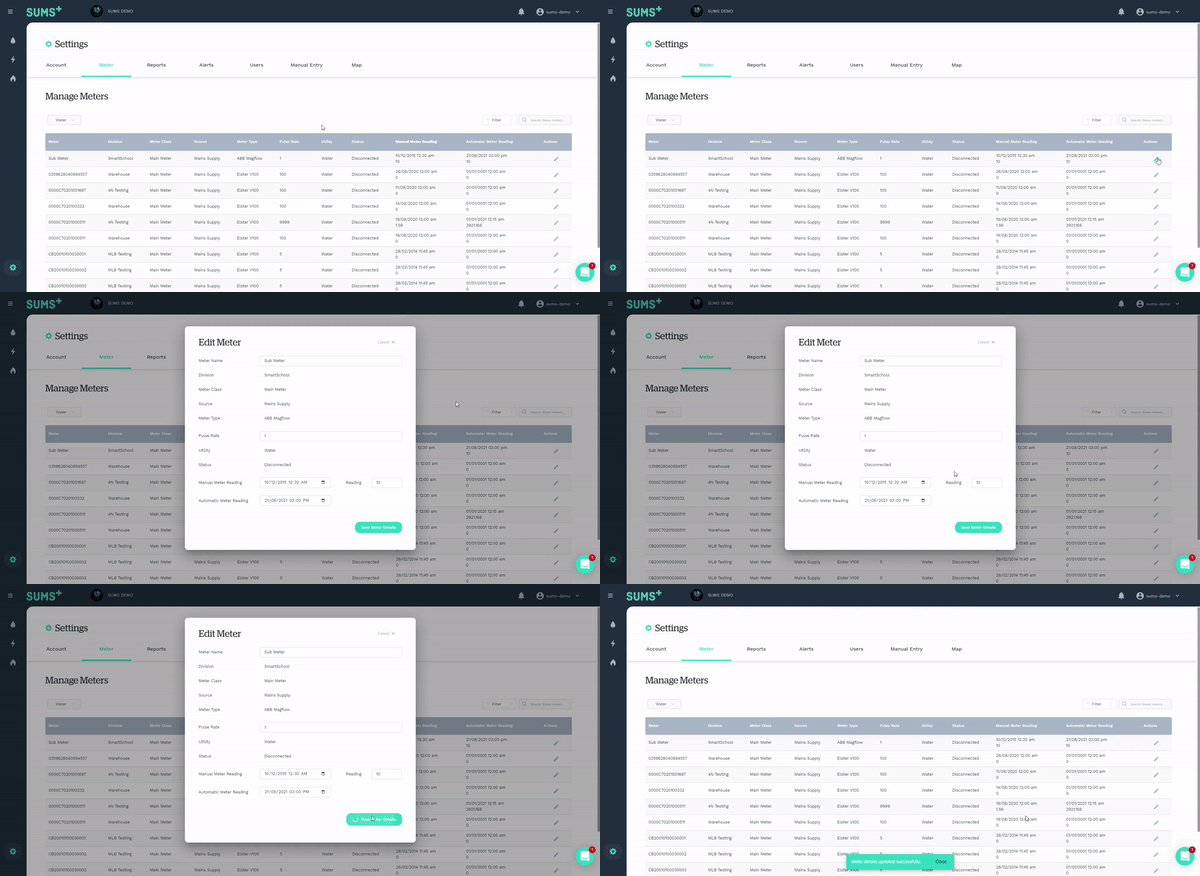
Generally, editable fields are limited to;
Meter Name
Pulse Rate
Manual Meter Reading Date & Amount
Automatic Meter Reading
Table Functions
While navigating the Manage Meters table, there are a few functions that increase the usefulness;
Filtering Meters
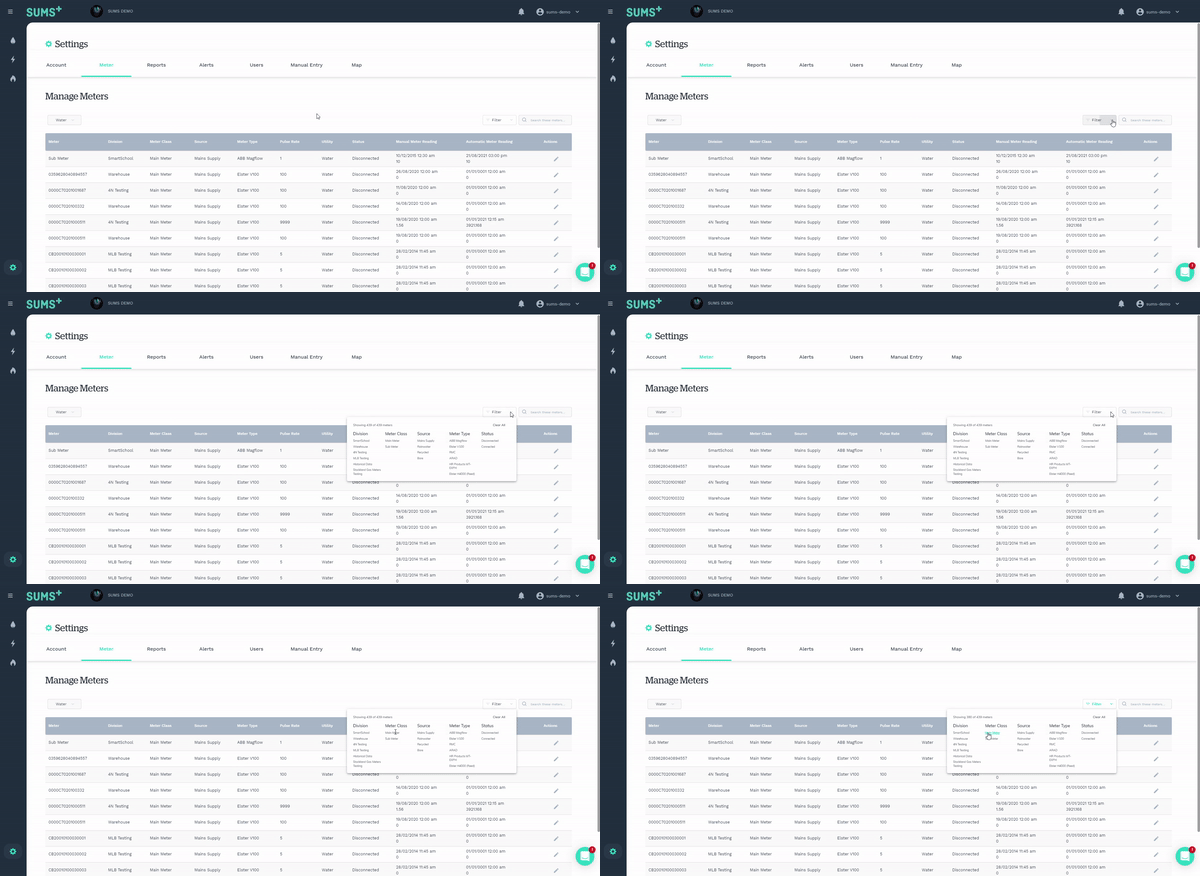
The filter button allows the table to quickly be filtered by a number of fields. For instance, clicking "Main Meter" under "Meter Class" will show only the main meters in the table.
Searching Meters
By typing into the search box, the table will filter meters that have the given input in any field. For instance, when searching "Warehouse", only those meters with "Warehouse" in any field will be in the table.
Showing & Hiding Fields
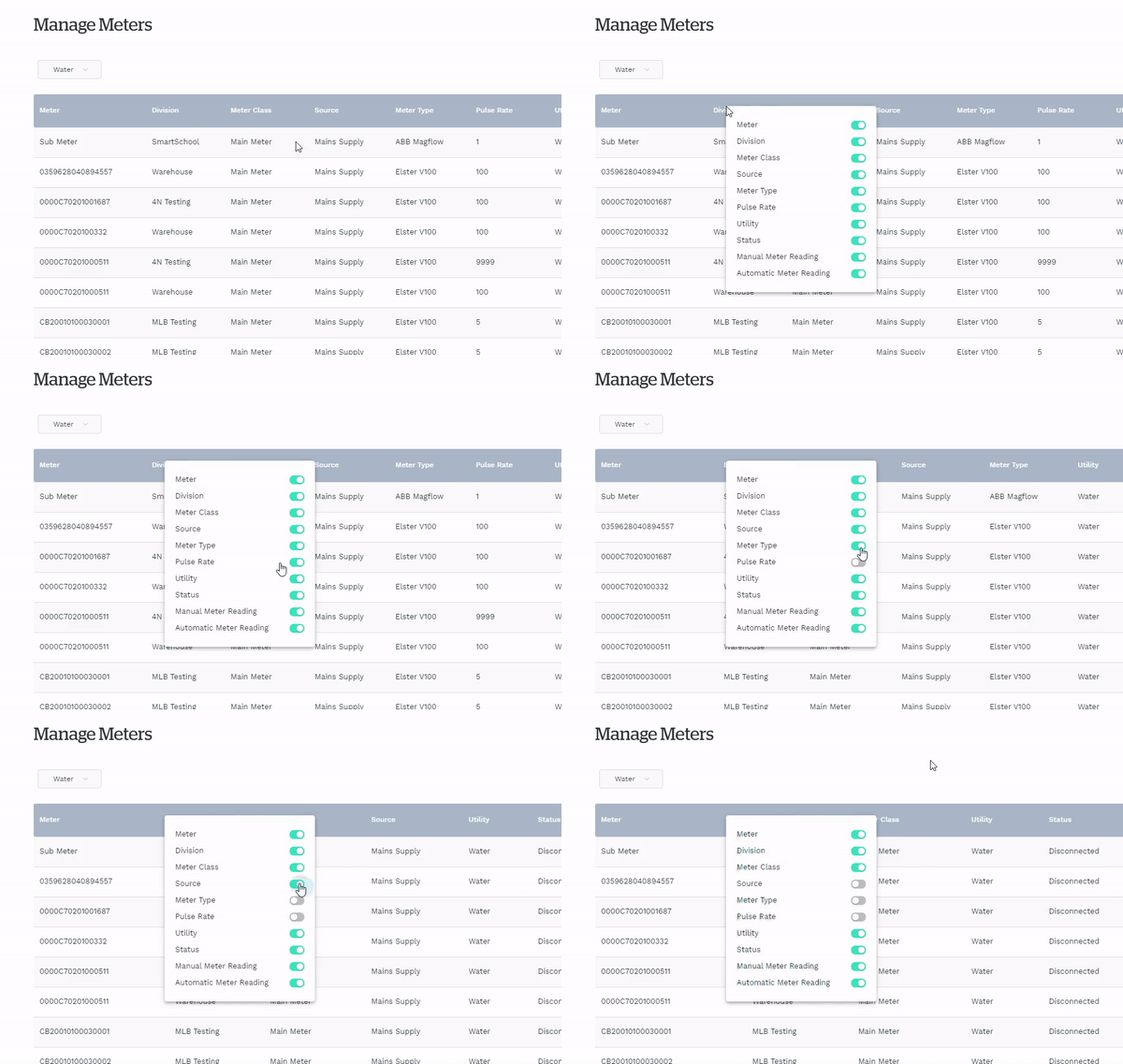
Right-clicking the table header will bring up a toggle menu, where certain fields (or columns) can be hidden or shown.
Automatic Meter Reading
The Automatic Meter Reading function will display the meter reading at the time selected. This reading is a calculation with the following logic;
Automatic Meter Reading = Reading at Manual Meter Reading Date + All Usage Between the Automatic Meter Reading and Manual Meter Reading Dates.
For instance, if the manual meter reading at 02/02/2020 12:00 AM is 100 kL, and the meter has used 1100 kL between then and 01/01/2021 12:00 AM, then the automatic meter reading at 01/01/2021 12:00 AM is 1200 kL.
Apply AMR
The "Apply AMR" button above the table will change the automatic meter reading time and date for all meters in the table.
Please note that these calculations may take some time to process.